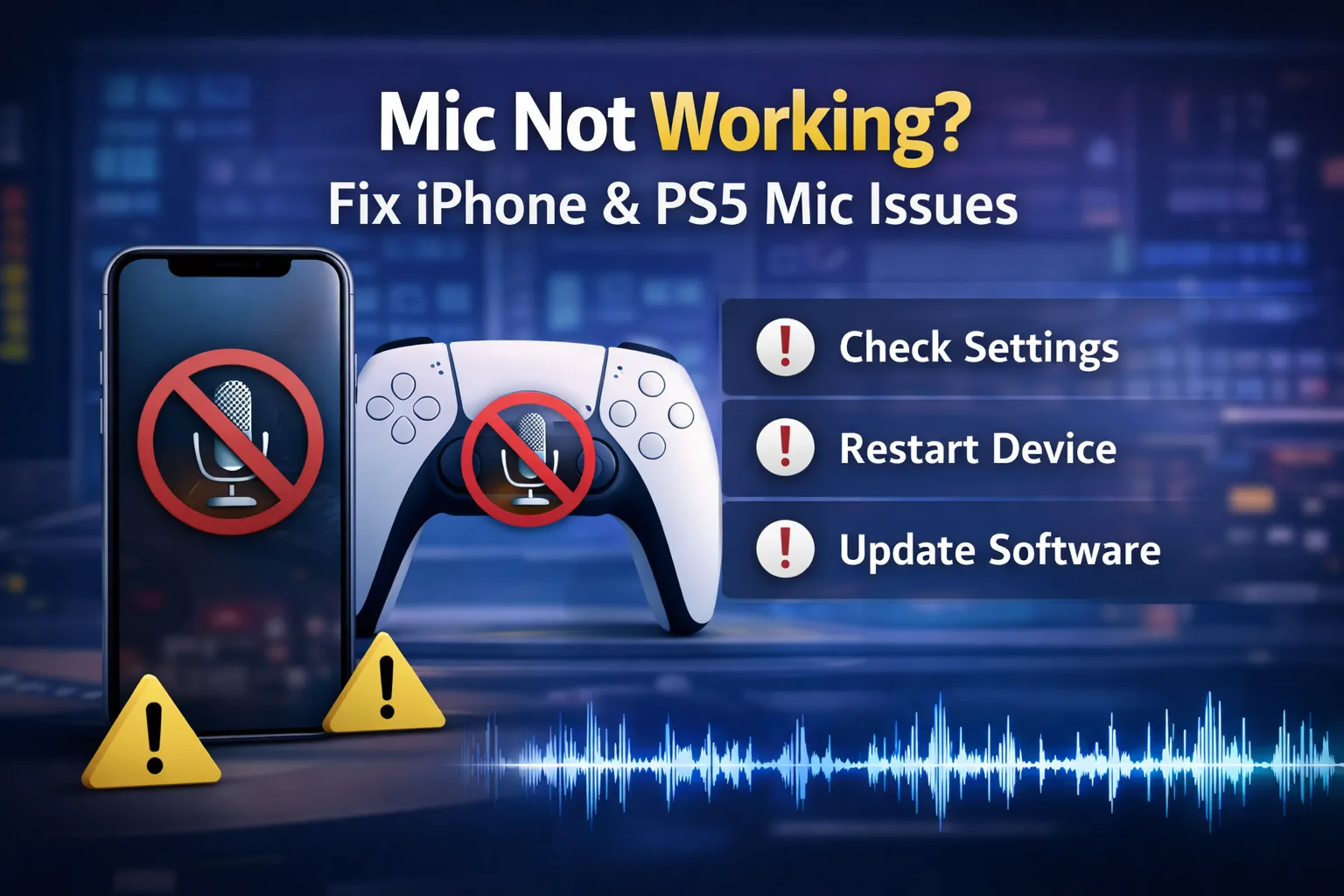
Microphones have become a vital component of our digital world, whether you are on a call with your friends or recording a podcast. However, microphones have a way of letting us down at moments that are very crucial. For this reason, we will discuss common microphone problems and their solutions.
iPhone Microphone Troubleshooting
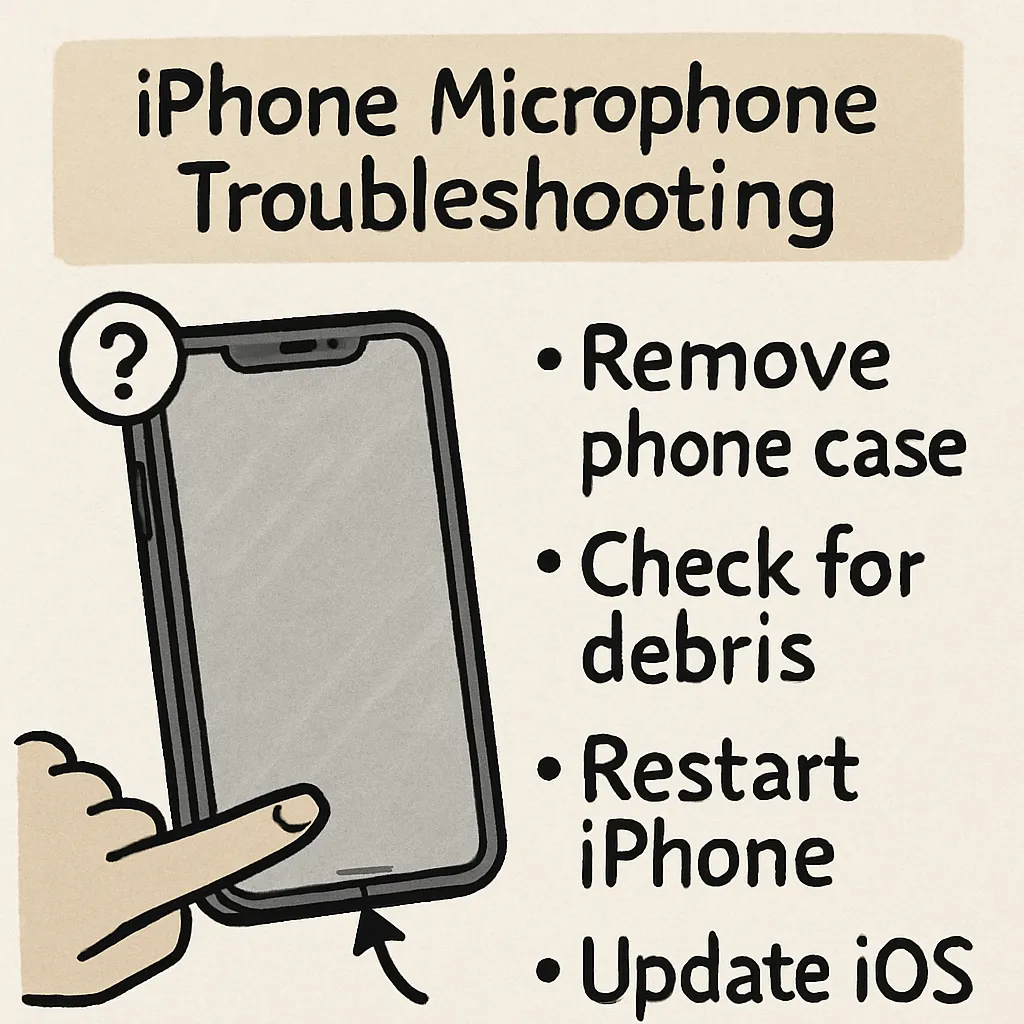
If you realize that there is a problem with your iPhone’s microphone functionality in calls or recording voice memos, there are steps you can follow to fix the problem. The process starts by checking for dirt or debris present in the microphone ports. Use a soft-bristled brush to clean them. Next, check if there are accessories such as a case or a screen protector that are covering your microphone. If not, try rebooting your iPhone. Go to Settings > Privacy > Microphone and check if the apps you are using allow access to your microphone. If this doesn’t resolve the issue, it is time to try contacting Apple Support.
Headset Mic Not Working on PS5 Discord
One of the problems usually encountered by gamers is the non-functionality of the microphone in the headset when using the PS5 Discord functionality. The first thing to do is to check the connection of the headset to the console. Ensure the headset is properly attached to the PS5 console and is in good condition.
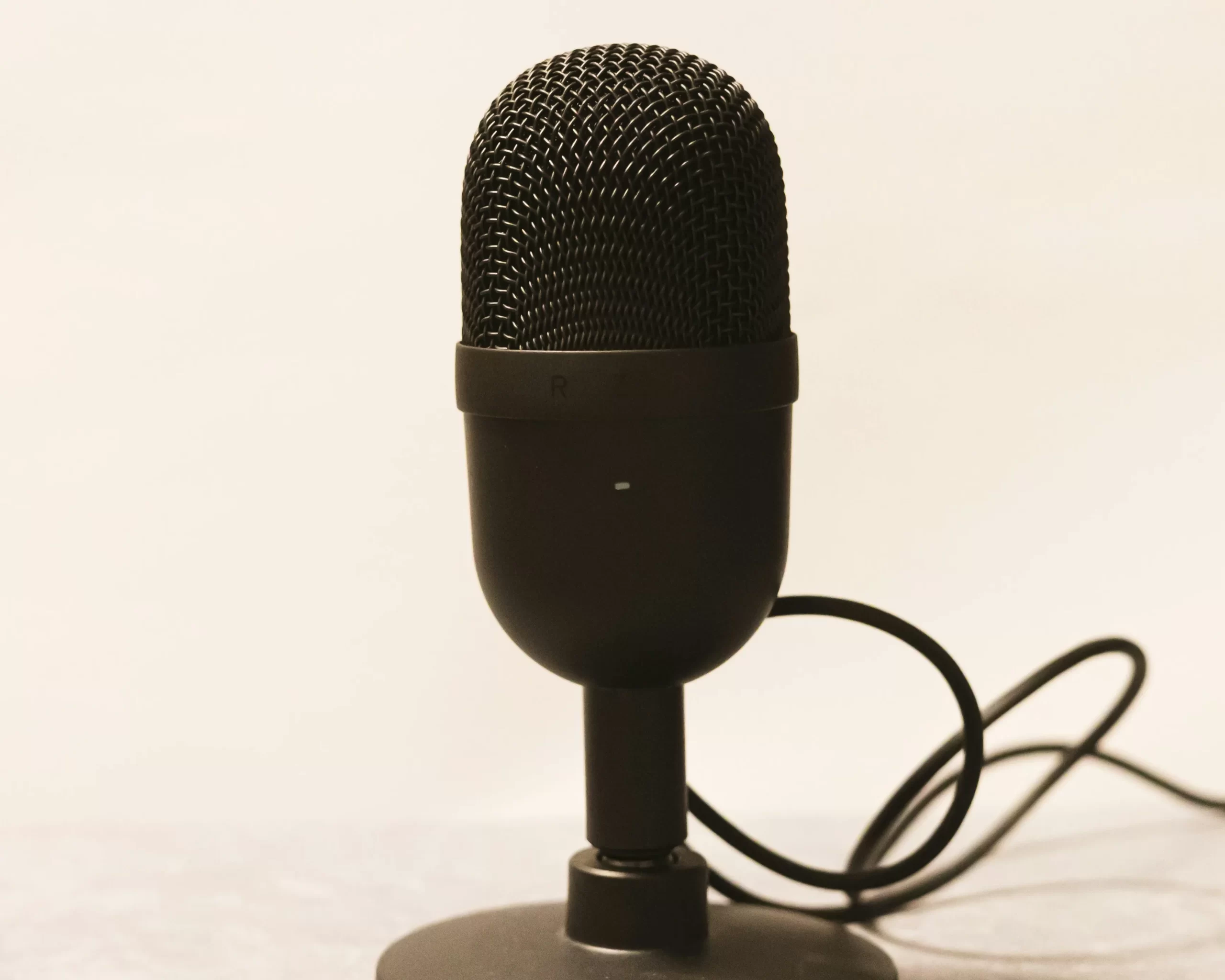
Make sure the microphone access is enabled on Discord. Then, on the PS5, access the Settings option, click on Sound, and select the microphone option. You should assign the microphone to the gaming headset. Also, verify the input option on the discord application on the PS5 to ensure the proper microphone option is chosen. If the problem persists, consider updating the PS5 software as well as the discord software.
General Mic Not Working Solutions
In a situation involving a universal mic problem with a gadget, it is paramount to check the physical connection. One should verify whether the microphone is properly connected and whether the cable is intact.
For computers, you simply need to check your sound configuration. Go to Control Panel > Hardware and Sound > Sound, and click on the Recording tab. It’s important that you choose your microphone as the default device. Also, make sure that you have updated audio drivers.
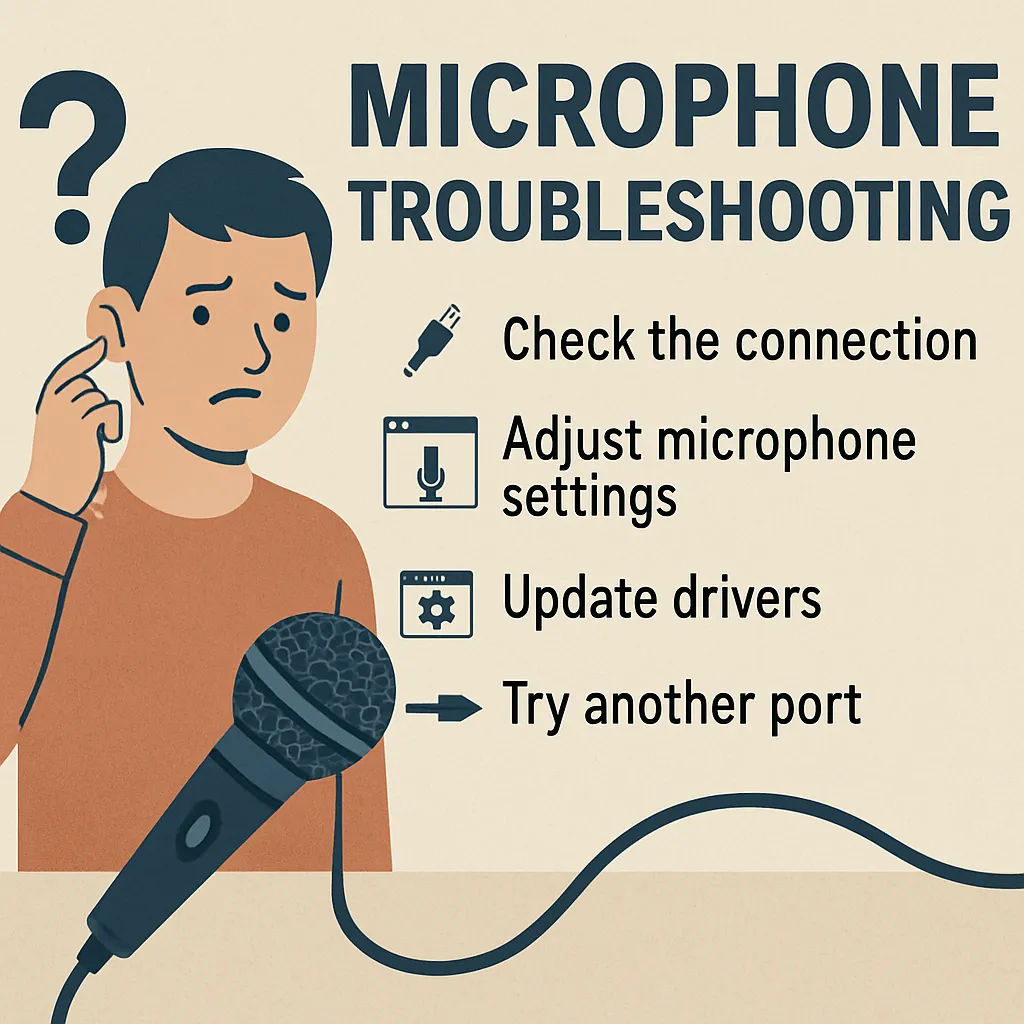
You can check if it is working properly by using it on another device. You can also check for any updates available for the firmware of your microphone.
On some occasions, the software configurations may result in mic issues. Ensure you have all the necessary permissions in place. For instance, on Windows, you can check settings by navigating through Settings > Privacy > Microphone and verify that the mic is allowed for usage on applications.
By following the above troubleshooting steps, you will be able to resolve most of the common problems associated with the microphone and communicate or record without much hassle.
We hope that some of these solutions work for you in resolving any microphone problems that you may be facing. Do not hesitate to share any other tips in a comment.